1. Introduction and platform overview
Welcome to Video Publisher Cloud, a platform for storing, managing, monetising, and distributing video content. It provides every tool you need to upload, transcode, monetise, and distribute video — from personal video blogs and training courses to professional video libraries and online cinemas.
This guide walks you through the core features of the Platform: from signing in to the Dashboard and uploading video to configuring the player, advertising, and analytics.
Key features
- Video upload. The Platform works with all popular formats (MP4, MOV, AVI, MKV, and others). Upload from your device or by link; for large volumes, upload automatically through the REST API.
- Transcoding. Automatic transcoding into multiple quality levels — up to 4K. Video plays back correctly on any device and at any connection speed.
- Monetisation. Ad breaks, subscriptions, and paid content — combine the models and earn from your video.
- Distribution. Deliver content by embedding the player on websites, publishing to social networks, and through mobile apps and Smart TV.
- Content management. Metadata, categories, geo-targeting by country, and control over video availability to other sites within the Platform.
- Analytics. Detailed statistics on views, audience, and ad impressions for every video.
2. Signing in to the Dashboard
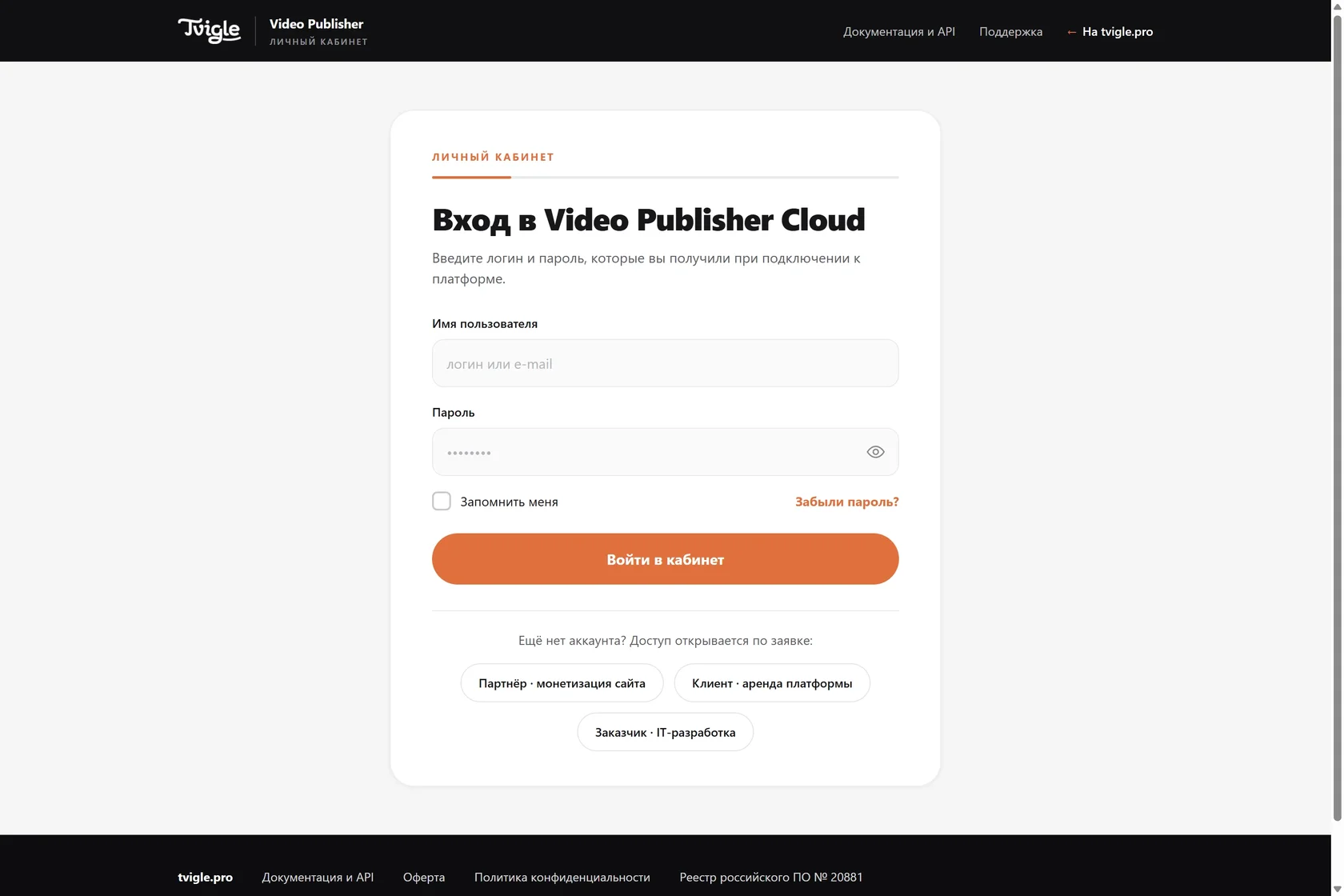
The Platform Dashboard is located at cloud.tvigle.ru. Access is granted after onboarding: submit a request at tvigle.pro — for the Partner Network, Platform Rental, or IT Development — and a manager will create your account and send you the sign-in details.
How to sign in
- Open cloud.tvigle.ru.
- Enter the username or email address you received during onboarding.
- Enter your password and click Log in («Войти в кабинет»).
Restoring access
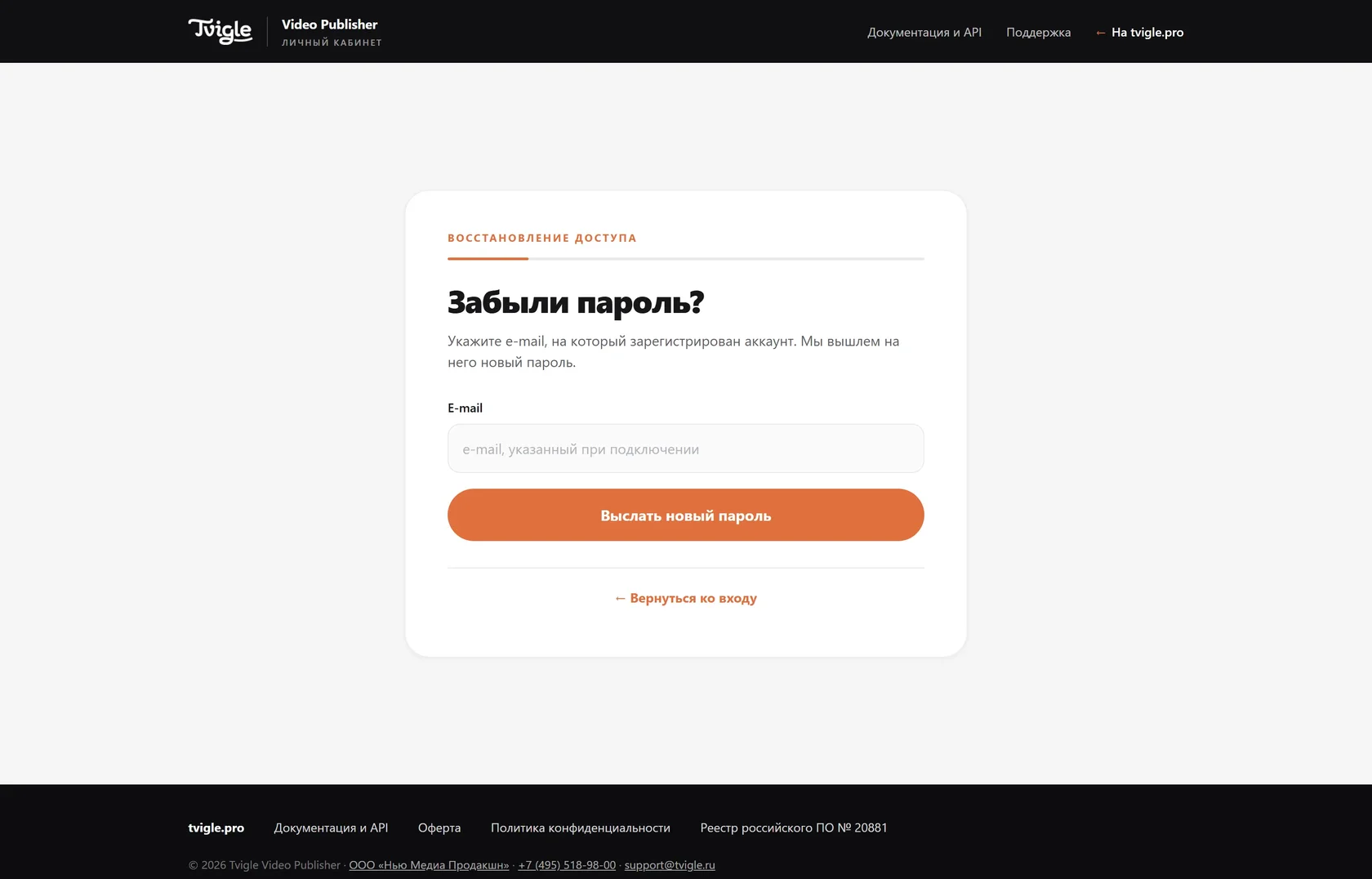
If you have forgotten your password, use the access recovery feature:
- On the sign-in page, click Forgot password? («Забыли пароль?»).
- Enter the email address your account is registered to.
- Click Send new password («Выслать новый пароль») — a recovery link will be sent to the email address provided during onboarding.
Don’t remember your email?
If you don’t remember your email address or username, write to support@tvigle.ru — we will contact you and help restore access.
Don’t have an account?
Access is granted upon request at tvigle.pro: choose your track — partner (website monetisation), client (platform rental), or customer (IT development) — and fill in the form.
3. Uploading video
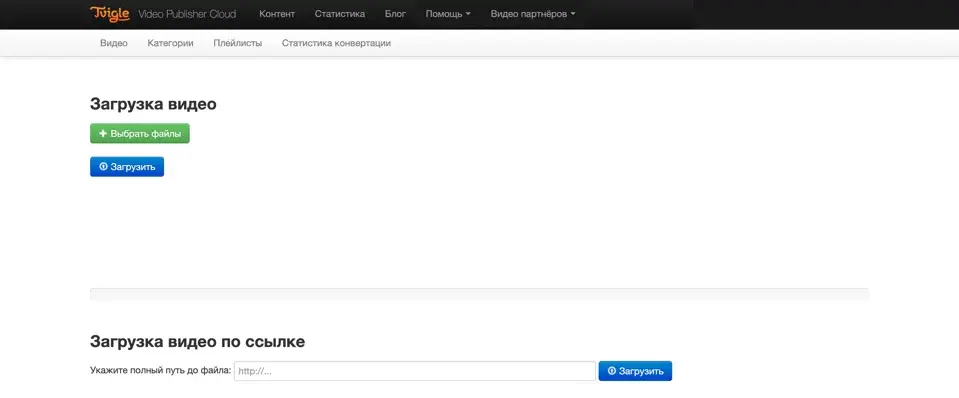
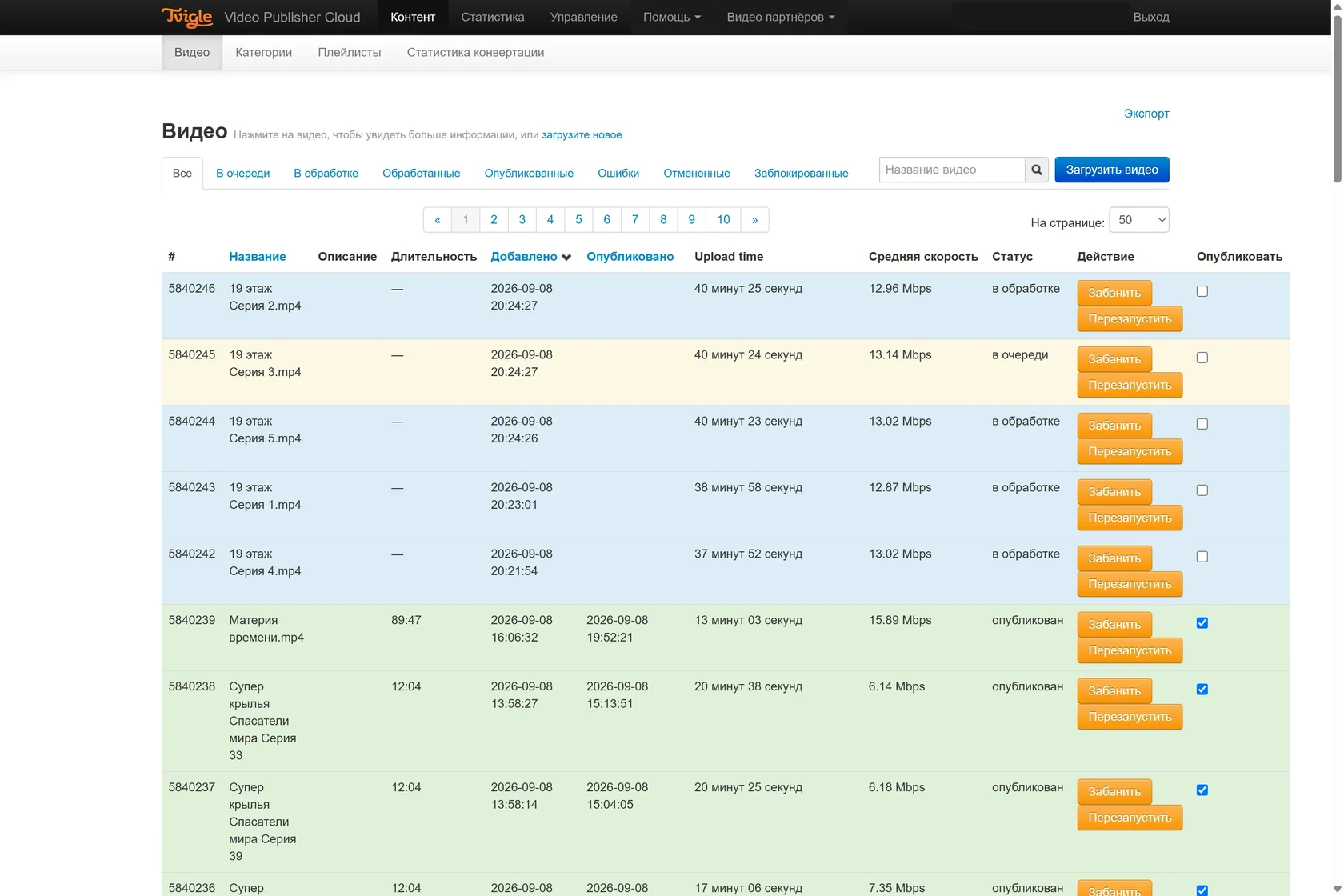
To add a video to the Platform, click Upload video («Загрузить видео») under Content → Video («Контент → Видео»). You can upload a file from your device or by direct link.
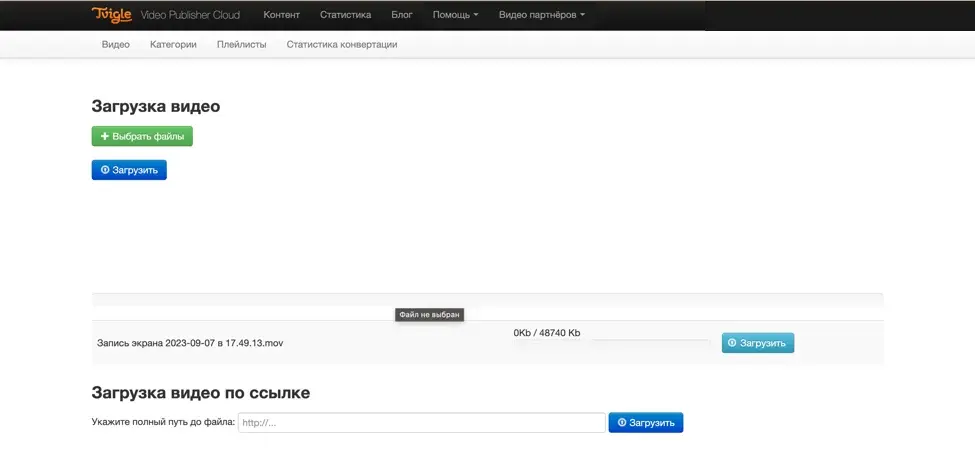
- Click Select files («Выбрать файлы») and choose a video on your device — or paste a link into the Upload video by link («Загрузка видео по ссылке») field.
- Click Upload («Загрузить»). Progress and speed are shown during the upload.
- Once uploaded, the video is queued for transcoding and will soon be ready to publish.
Video statuses
After upload, a video goes through the queue and transcoding. Its status is shown in the video list in the Dashboard:
In queue — the video has been uploaded and is waiting for transcoding, 10–15 minutes on average. Processing — transcoding is under way. Processed — the video is ready and can be published. Once published, the video is available for users to watch. Blocked — videos that violated the Platform rules.
Playlists
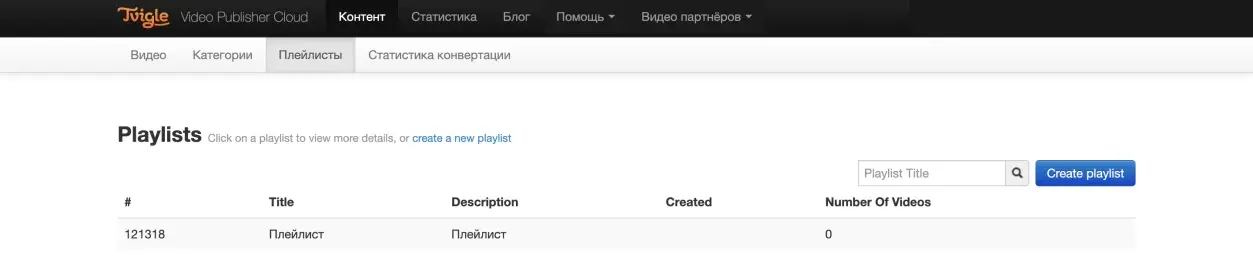
Playlists group videos so they can be shown as a list in a single player. The section is located at cloud.tvigle.ru/client/playlists. A playlist is built from videos assigned to a category, so first group your videos in the Categories («Категории») section.
How to create a playlist
- Click Create playlist and create a playlist.
- Assign videos from categories to the playlist.
- Choose the player type and generate the embed code.
- Copy the player embed code and add it to your website.
4. Distribution
Licensing features
Licensing features link a video to a rights holder and a contract. A rights holder can have several contracts, each with its own terms; videos are assigned to a contract. Main settings:
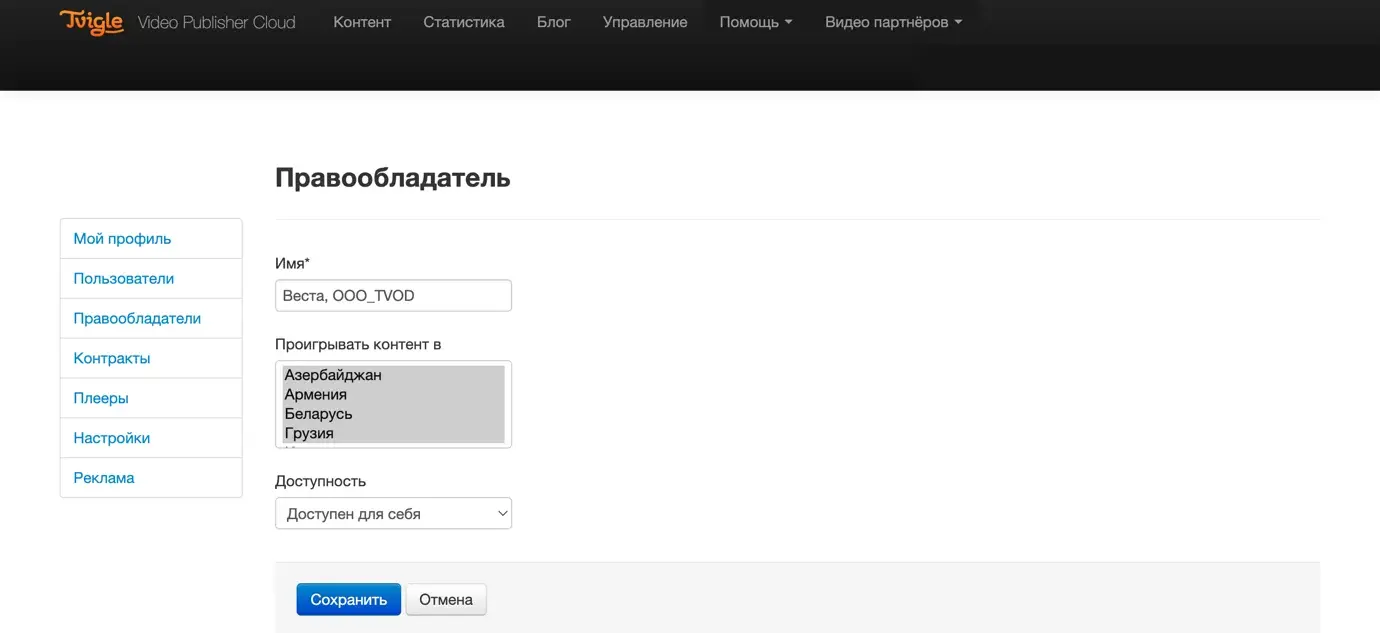
- Rights holders («Правообладатели») — cloud.tvigle.ru/client/account/rightholders
- Contracts («Контракты») — cloud.tvigle.ru/client/account/contracts
At the rights-holder level, you configure video geo-targeting and availability within the Platform: content can be hidden from other users or, conversely, opened up so you can earn from distributing your video to other sites on the service.
Contracts
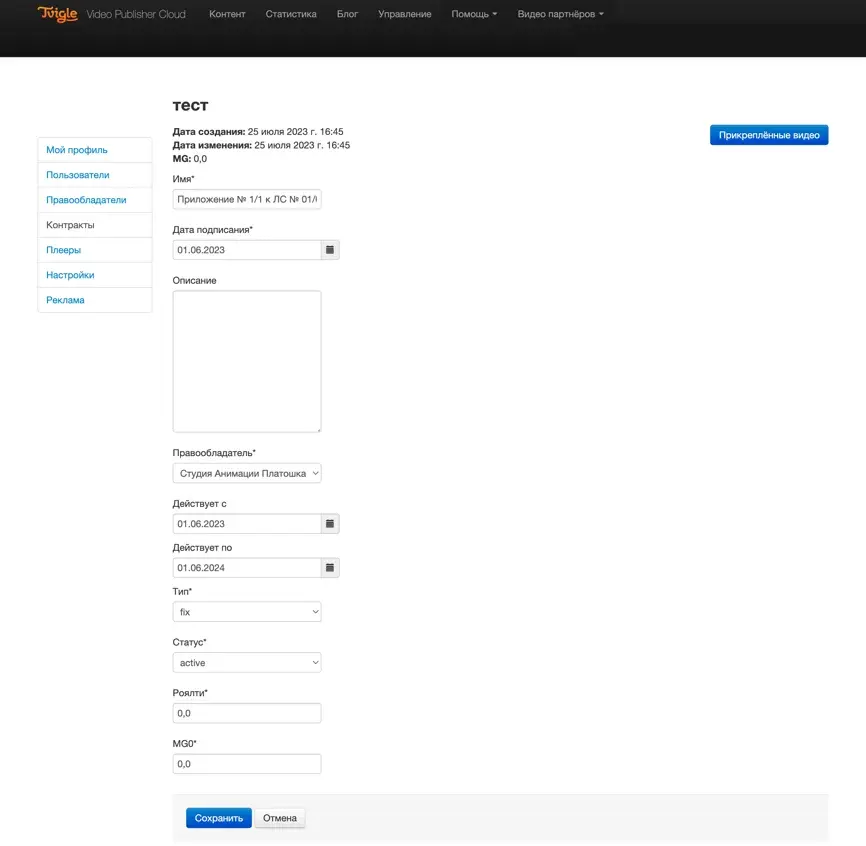
Each contract has its own monetisation terms, which determine the rights holder’s earnings reports under that contract.
Contract types
- Fixed — payment of a set amount for the right to show a video in a specific territory.
- Royalty — a percentage of the revenue from ads shown in the video or from its sale.
- Mixed — fixed fee + royalty.
Videos assigned to a contract can be viewed separately — use the Attached videos («Прикреплённые видео») button in the contract card.
Embedding video on a website
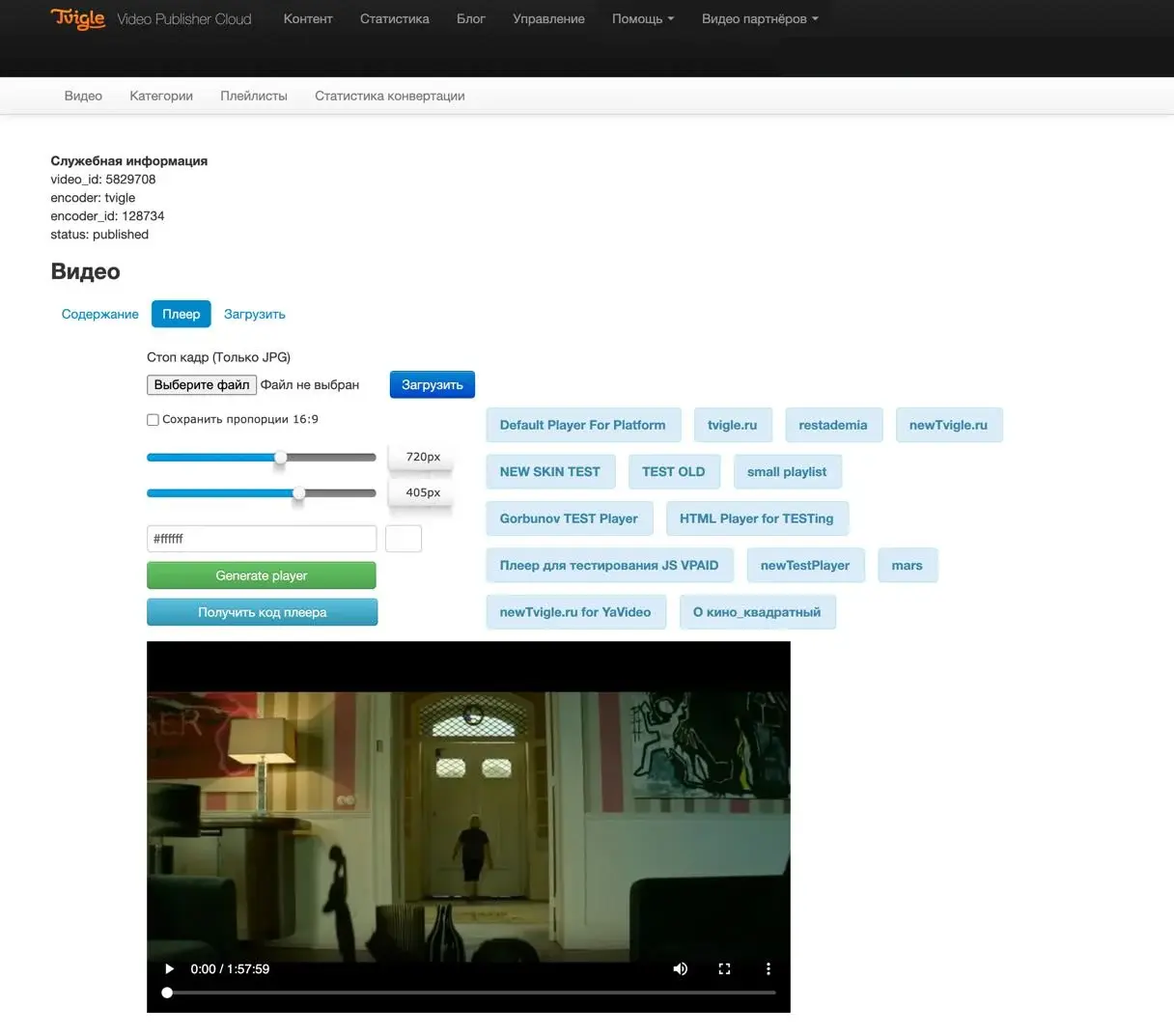
To embed a video on a website or blog, wait until its status changes to Processed («Обработанные») or Published («Опубликованные»), then get the embed code:
- Open the video page by clicking the video in the list.
- Go to the Player («Плеер») tab.
- Choose the player settings you need.
- Click Generate player — the settings will be applied.
- Click Get player code («Получить код плеера»).
- Copy the code from the pop-up window and paste it into an article in your website’s admin panel.
Access settings. Deletion and archiving
Team access
Different specialists work with the Platform — from developers to editors — and each needs personal access. Users are created at cloud.tvigle.ru/client/account/users: when creating a user, you specify the sign-in details and a role. Roles are configurable — a role determines access to different sections of the Platform.
Deleting video
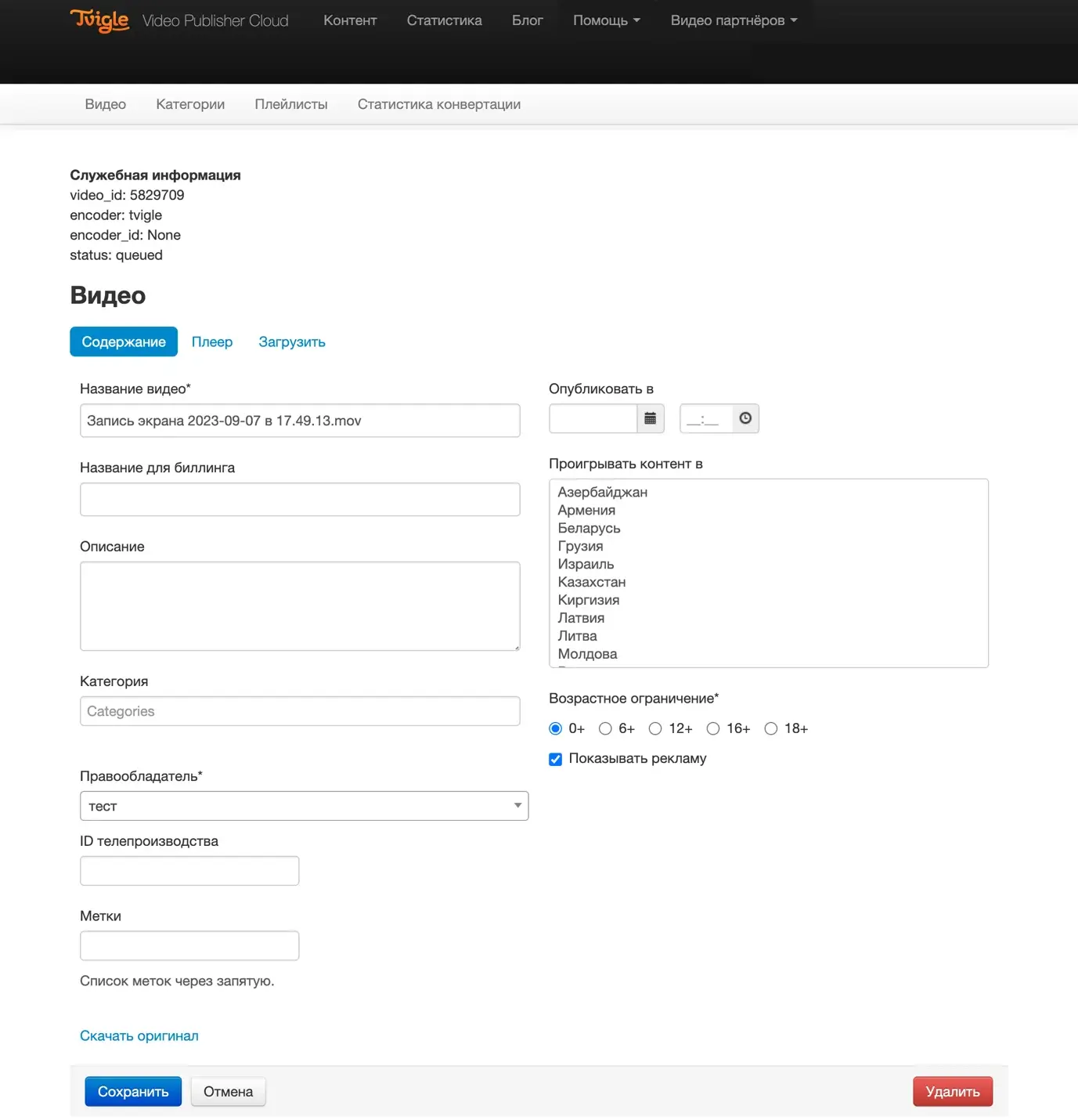
To delete a video, click it and then click the red Delete («Удалить») button. The service uses soft deletion: after deletion, there is a period of several months during which the video can be restored. A deleted video is unavailable for playback and is not shown in the Dashboard.
- Restoring a deleted video — by request to support@tvigle.ru.
- Archiving a video — also by contacting technical support.
Managing metadata
When uploading a video, you can add a title, description, and tags and assign it to a category. This data is needed to manage content properly and to power additional Platform features.
Everything you add can be retrieved through the REST API — together with the player embed codes, which is convenient for developers.
The description helps users find the video through search and can be displayed in the player when playback starts. Categories make it easier for editors to navigate the video list.
On the video page, you can also set the display territories (Play content in / «Проигрывать контент в»), the age rating, and ad display.
Categories
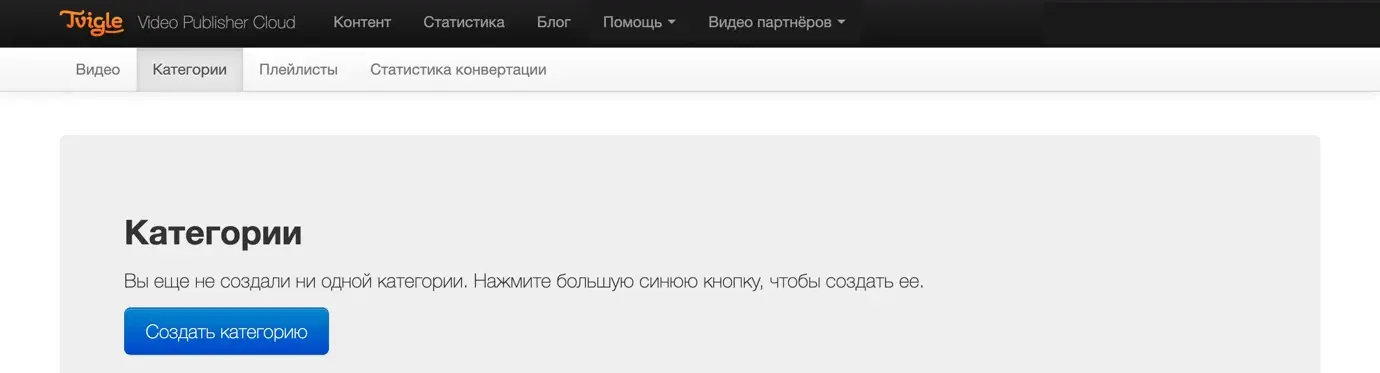
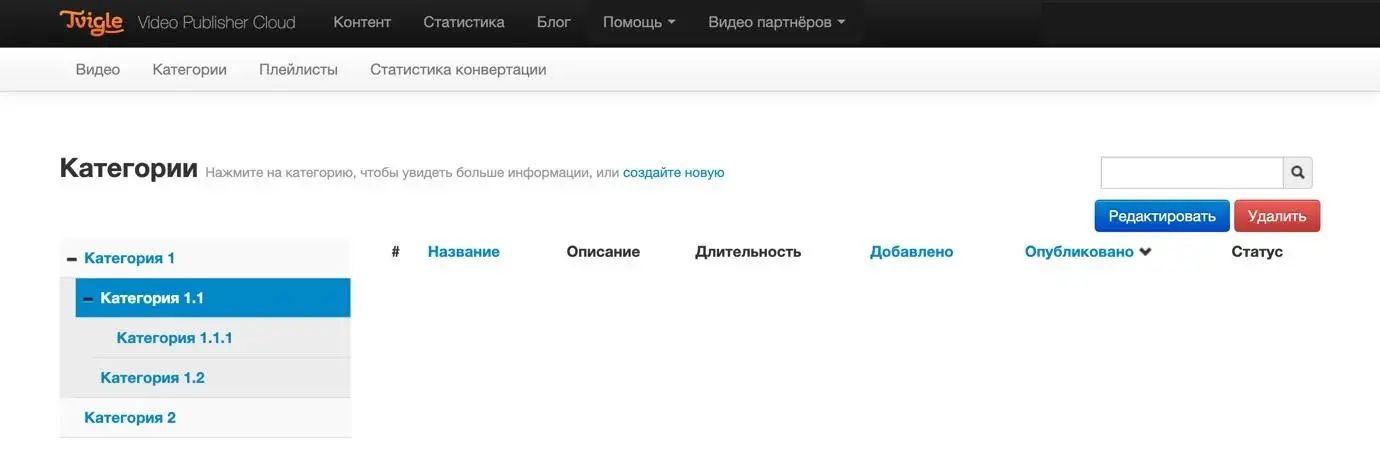
The Categories section structures your video content and serves as the basis for playlists: cloud.tvigle.ru/client/categories. To create a category, click Create category («Создать категорию») and fill in the name and description. You can also map the category to advertising taxonomies — they are needed for advanced ad targeting.
5. Analytics and statistics
View statistics
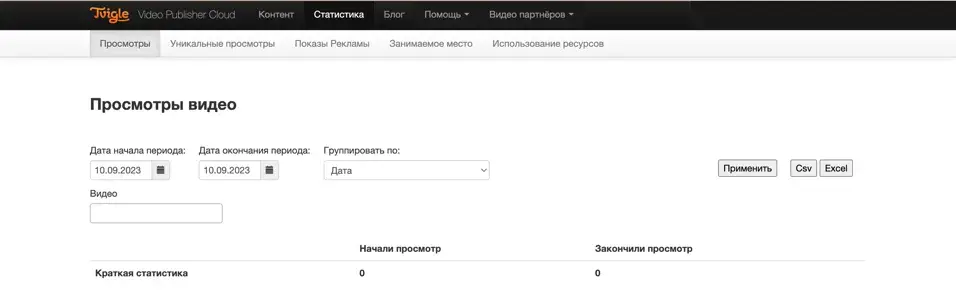
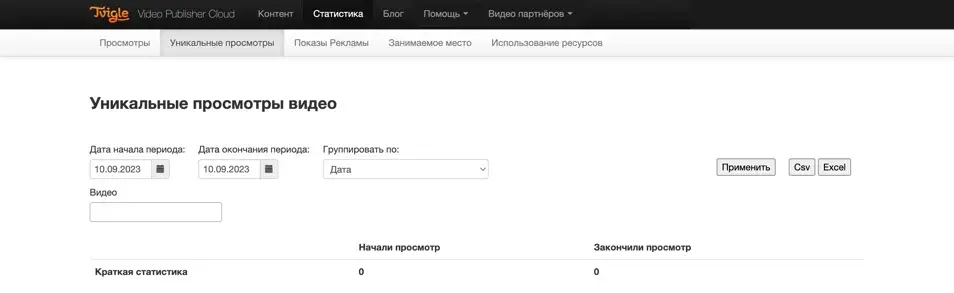
Video view data is available at cloud.tvigle.ru/client/analytics/reports/views. Reports on views and on unique views are available. Data can be grouped by video, platform, country, and date; segmentation by video list is also possible. All data can be exported to Excel or CSV.
Ad statistics and transcoding
Ad report
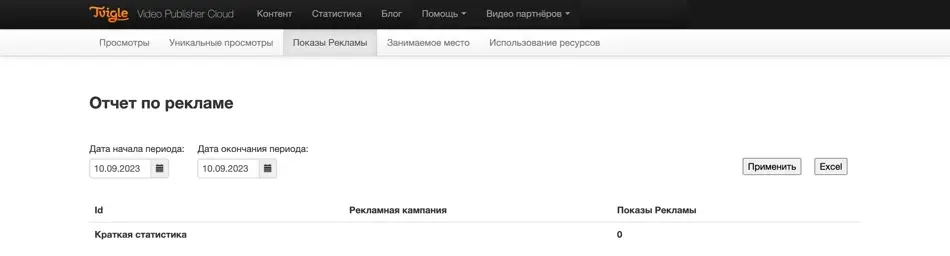
Ad impression data is available at cloud.tvigle.ru/client/analytics/reports/pad. The data is broken down by ad campaign; campaigns are set up in the Advertising («Реклама») section (see Section 07, Monetisation).
Transcoding statistics
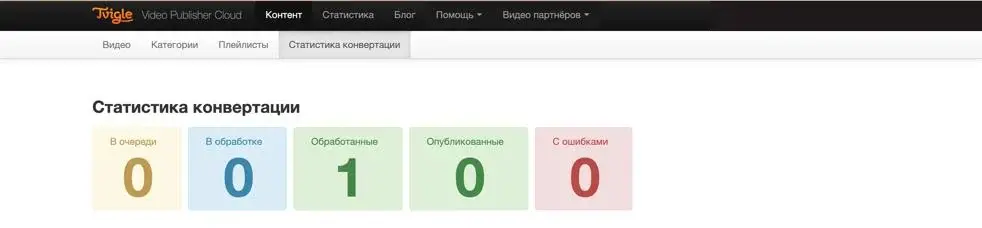
The amount of uploaded content by status is shown at cloud.tvigle.ru/client/videos/stats: how many videos are in the queue, processing, processed, published, and with errors.
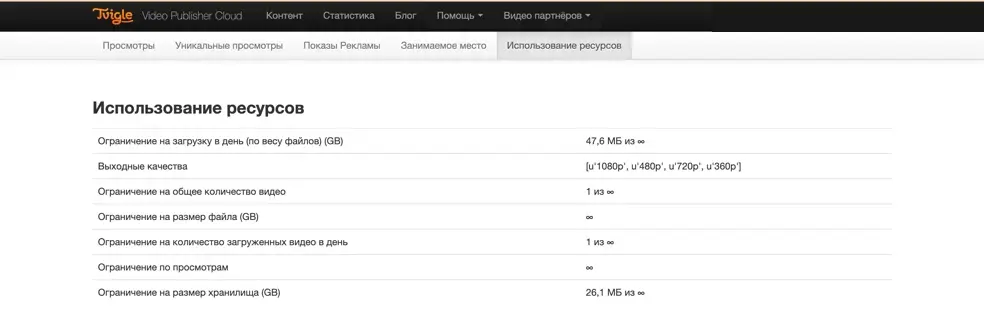
Platform resource usage
Key data on Platform resource usage is available at cloud.tvigle.ru/client/analytics/reports/resources. Here you can see your limits and current consumption: daily upload volume, output quality levels, total number of videos, file size, number of uploads per day, views, and storage size.
6. Video Publisher player
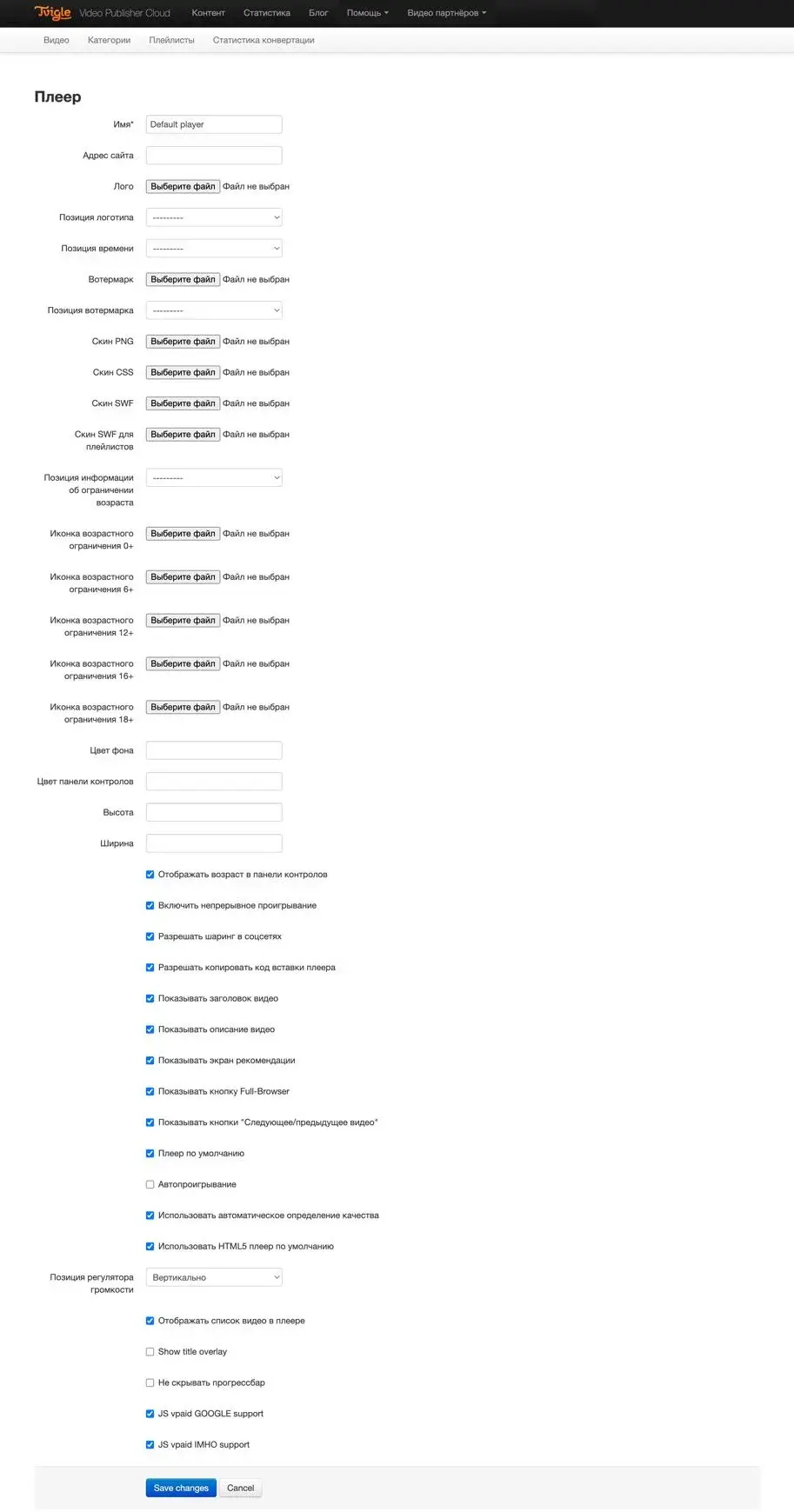
Player settings are located at cloud.tvigle.ru/client/players. You can set up a separate skin for the player — the set of images that make up its design. The player is highly flexible: almost every element can be turned off on the settings page.
What you can configure
- Logo and its position in the player.
- Skin — design files (PNG, CSS), including a separate skin for playlists.
- Age rating icons — 0+, 6+, 12+, 16+, 18+, and the position of the age rating information.
- Interface elements — video title and description, recommendations screen, Next/Previous buttons, social sharing, autoplay, continuous playback, and more.
- Colours and dimensions — background, control bar, height, and width.
- Advertising and other settings — VPAID support, HTML5 mode.
7. Monetisation
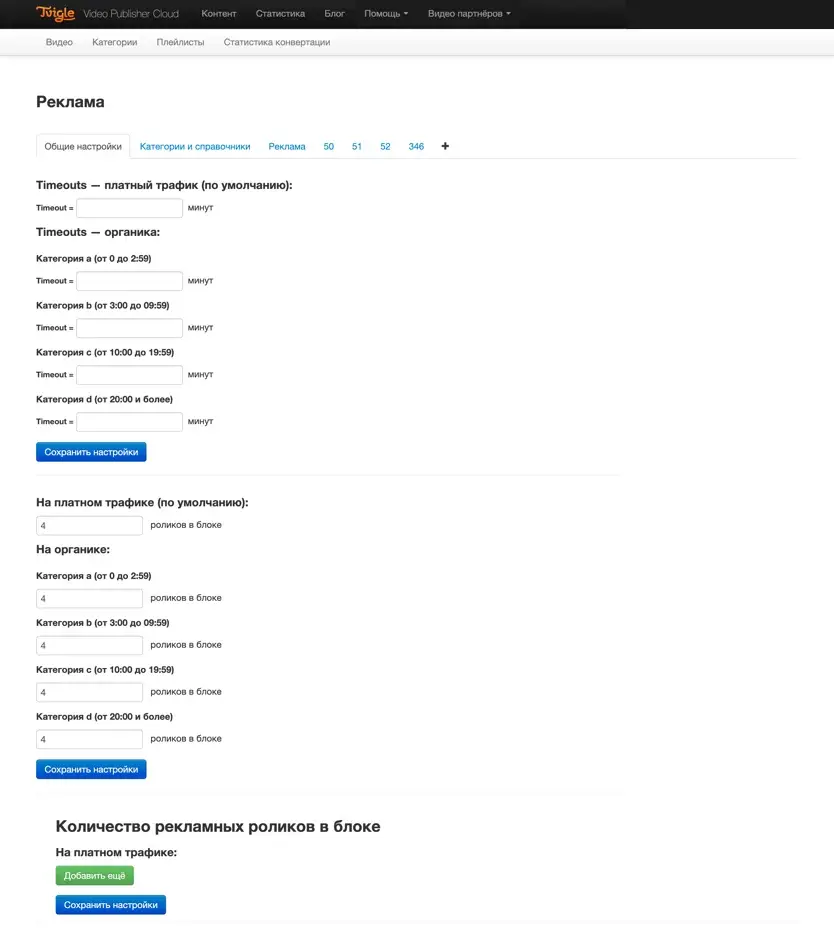
Advertising is one of the main ways to monetise video. Ad settings are located at cloud.tvigle.ru/client/account/ads.
On the settings page, you can change ad frequency depending on the time of day, video duration, and ad stream. The number of ads per break is configured separately for each stream.
Organic traffic is used by default, but you can define different sets of settings for different traffic types: for example, more ads per break for paid traffic from contextual advertising, and a lighter ad load for new visitors to your site.
Ad campaigns
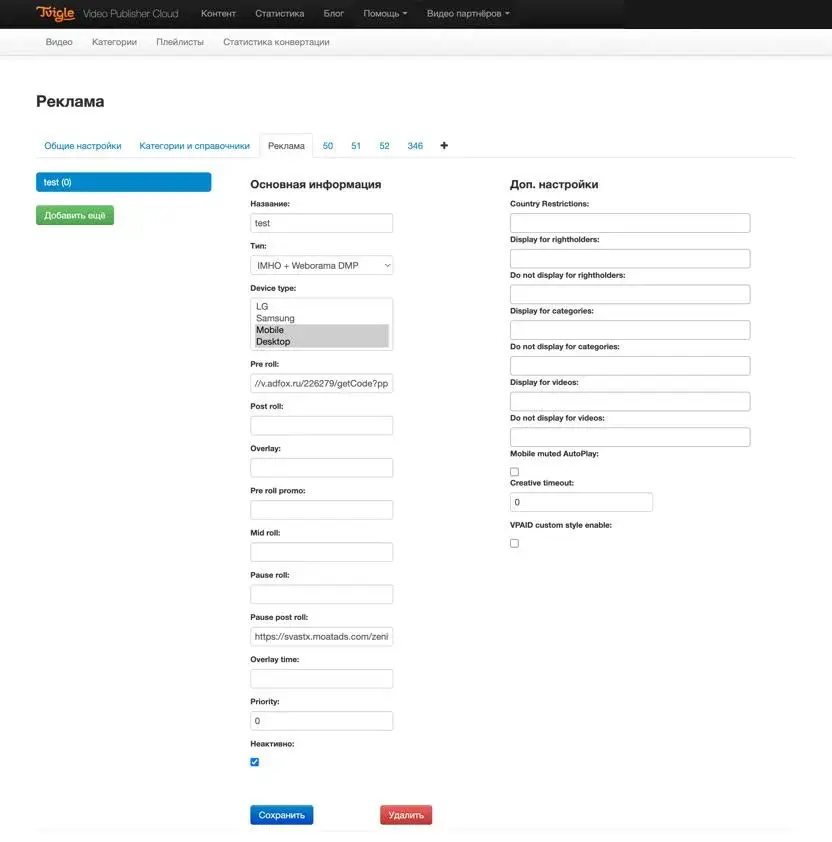
Ad campaigns are set up on the Advertising («Реклама») tab of the same section. For each campaign, you configure:
- Type and ad tag — pre-roll, mid-roll, post-roll, pause-roll, overlay; links to the ad server (for example, Adfox).
- Devices — Desktop, Mobile, Smart TV (LG, Samsung, and others).
- Targeting — by country, rights holder, category, and individual video, including exclusions.
- Additional settings — priority, creative timeout, muted autoplay on mobile, VPAID.
Impression statistics by campaign are available in the ad report (Section 05).
8. Support and feedback
You can reach the Platform’s technical support at support@tvigle.ru — or through the Ask a question («Задайте свой вопрос») form on the documentation page: tvigle.pro/docampapi#vopros. We will reply to the email address or phone number you provide during business hours.
How to report a problem
If you find an error in how the Platform works, let us know through the feedback form. To help us resolve it faster, please include:
- A screenshot of the screen showing the problem.
- Device details — browser, operating system, device type.
- Your preferred contact method — email or phone.
9. Frequently asked questions (FAQ)
QHow can I earn money on the Platform?
Join the Partner Network. By publishing licensed Tvigle video content or your own video on your website through Video Publisher Cloud, you receive a percentage of the revenue from the video ads shown in it. For details, contact vp@tvigle.ru.
QIs my website eligible for the Partner Network?
Yes — provided that the site has more than 1,000 visitors per day and its content does not violate the laws of the Russian Federation.
QHow much do 1,000 ad impressions cost?
The price of ad campaigns (CPM — cost per thousand impressions) is not fixed: it depends on seasonal coefficients, targeting, content type, and the quality of the partner’s site.
QAre payouts made for video views or clicks?
No, earnings accrue only for ad impressions. Video views, ad clicks, and other events are not counted.
QDo you develop Smart TV apps?
Yes, we provide the full cycle of services — from development to getting your app approved by vendors. Tvigle works with all major TV manufacturers.
QHow can I get all the content from Tvigle.ru?
To give you access to the full Tvigle.ru library, we need to get your site approved by the rights holders. Contact your Tvigle manager and ask to have the content you need added.
QCan I monetise my own content?
Yes, you can monetise your own content through the Partner Network.
QCan I use the player with my own design?
Yes, of course. To do so, you need to become a commercial client of Video Publisher Cloud — submit a platform rental request: tvigle.pro/arenda-platformi.
QCan I place ads in my own content myself?
Yes, of course — and through any ad system.
QWhy has a Tvigle video become unavailable?
Most likely, the video was unpublished because its licence agreement expired. Contact your Tvigle manager to subscribe to the relevant notification mailing list.
QCan I show Tvigle content in my own player?
No, the content is provided solely for use within the Tvigle Video Publisher Cloud platform.
QDoes the player support playback on mobile devices?
Yes, our players work on all mobile devices, as well as on Smart TVs and set-top boxes.
QHow does YouTube synchronisation work?
Synchronisation lets you upload a video to Video Publisher Cloud and YouTube at the same time: simply upload the video to Video Publisher Cloud, and it will automatically appear on your YouTube channel.
10. Links, contacts, and glossary
Links
- cloud.tvigle.ru — Video Publisher Cloud Dashboard
- tvigle.pro — Platform website, onboarding requests
- tvigle.pro/partnerships — Partner Network
- tvigle.pro/arenda-platformi — Platform Rental
- tvigle.pro/it-development — IT Development
- tvigle.pro/docampapi — documentation, API, and the Ask a question («Задайте свой вопрос») form
Contacts
- Sales (Partner Network, Platform Rental) — vp@tvigle.ru
- Technical support — support@tvigle.ru
- Monetisation and advertising — sales@tvigle.ru
- Phone — +7 (495) 518-98-00
Glossary
- Ad break
- The number of video ads shown to a user in a row (also known as an ad pod).
- Royalty
- A percentage of the revenue from ads shown in a video or from its sale.
- Fixed contract type
- An agreement with a rights holder on a set amount for the right to show a video in a specific territory.
- CPM
- Cost per thousand ad impressions.
- Ad system
- A software suite for managing video advertising (for example, Adfox).
- Transcoding
- The process of converting video for playback at different resolutions.
